Key points
- Suits every current Fire TV Stick, the Cube and Fire TV smart TVs
- Takes around ten minutes the first time
- Have your Stremzi login from WhatsApp ready
More Stremzi viewers watch on a Fire TV Stick than on anything else, from Toronto to Riyadh. It is inexpensive, plugs into any HDMI port and, in the 4K and 4K Max models, has enough power for long channel lists and fast live sport. These steps apply to every Fire TV Stick generation, the Fire TV Cube and TVs with Fire TV built in.
Before you begin
- Update the stick. Go to Settings › My Fire TV › About › Check for Updates, install anything waiting and let the stick restart.
- Make some room. Remove apps you never open. A player needs free space to store the channel list and programme guide.
- Find your details. The Stremzi login arrives in your WhatsApp chat: usually a server address, a username and a password, sometimes with an M3U link as well.
Pick a player app
Stremzi runs inside an IPTV player, which is a separate app from a third-party developer. Some players are in the Amazon Appstore; type "IPTV player" in the search bar and look at recent reviews. Others are downloaded from the developer's own website with the free Downloader app. With your login, we tell you which player we currently recommend for Fire TV and how to install it.
Stick to the Appstore or a developer's official site. Do not install a pre-loaded app file that someone sends you.
Installing the app
- For an Appstore player, open its page and press Get. When the download finishes, move on to the login section.
- For a player outside the Appstore, open Settings › My Fire TV. If Developer Options is missing, go to About and press the select button on your device name seven times.
- Get the Downloader app from the Appstore, then allow it under Developer Options › Install unknown apps.
- In Downloader, enter the player's official download address, install it, and delete the leftover installer to free space.
Enter your login
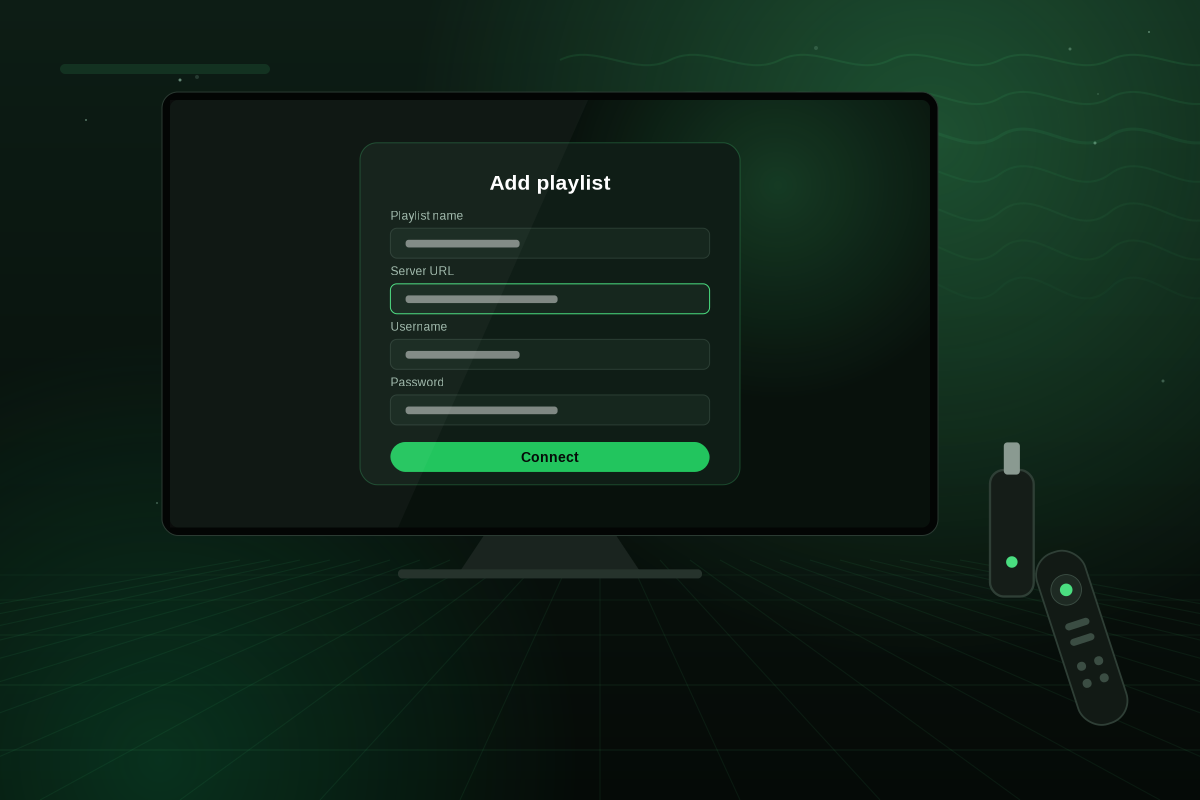
- Open the player and look for Add user, Add account or Add playlist.
- Pick Xtream Codes (sometimes called "Xtream API"). It is shorter to type than an M3U link and loads the guide on its own.
- Type the server address, username and password exactly as written in WhatsApp. The address normally starts with
http://and can end with a port such as:8080. - Save, then wait while the app fetches channels, films, series and guide data. The first load can take a couple of minutes, so leave it on that screen.
Tip: the free Fire TV app on your phone works as a keyboard, which is far quicker than typing a password letter by letter with the remote.
Settings worth changing
- Frame rate matching. On 4K models, switch on Settings › Display & Sounds › Display › Match Original Frame Rate for smoother motion in sport.
- Favourites. Star the channels you use daily so they sit at the top.
- Hidden groups. Hide countries and categories you never watch to make the list shorter and quicker.
- Guide time. If programmes appear at the wrong time, check the stick's time zone first, then the EPG offset in the player.
Keeping the stick quick
Fire TV Sticks have limited memory. Every so often, clear the player's cache under Settings › Applications › Manage Installed Applications, and restart the stick once a week by holding Select and Play together for five seconds. If the stick is jammed behind the TV, an HDMI extender lets it breathe and often improves Wi-Fi reception too.
Common problems
| What you see | Likely reason | Fix |
|---|---|---|
| Login rejected | Typing mistake or extra space | Re-enter the details, ideally with the phone app keyboard |
| Channels load but films are missing | The first download did not finish | Refresh the account in the player settings and let it complete |
| Sport stutters | Weak Wi-Fi or an older stick | Try an Ethernet adapter, bring the router closer or choose the HD stream |
| Stick restarts by itself | Overheating or full storage | Free up space, clear cache and give the stick more air |
Still not right? Our buffering guide goes further, or send a photo of the screen to us on WhatsApp.